PictureGuide offers various functions to compare and sort out similar shots.
You can get an overview of the possibilities via PictureGuide > Sort Out.
Select the desired category here.
- Duplicates: Find identical images in different directories
- Similarity: compare similar shots in a certain time frame
- Out of focus: sort out any blurred shots and check alternatives
- Motive value: no good or concrete motive could be identified
To compare images directly in the search view, press the < key or click on the Compare images icon in the right sidebar.
Operation Image Comparison
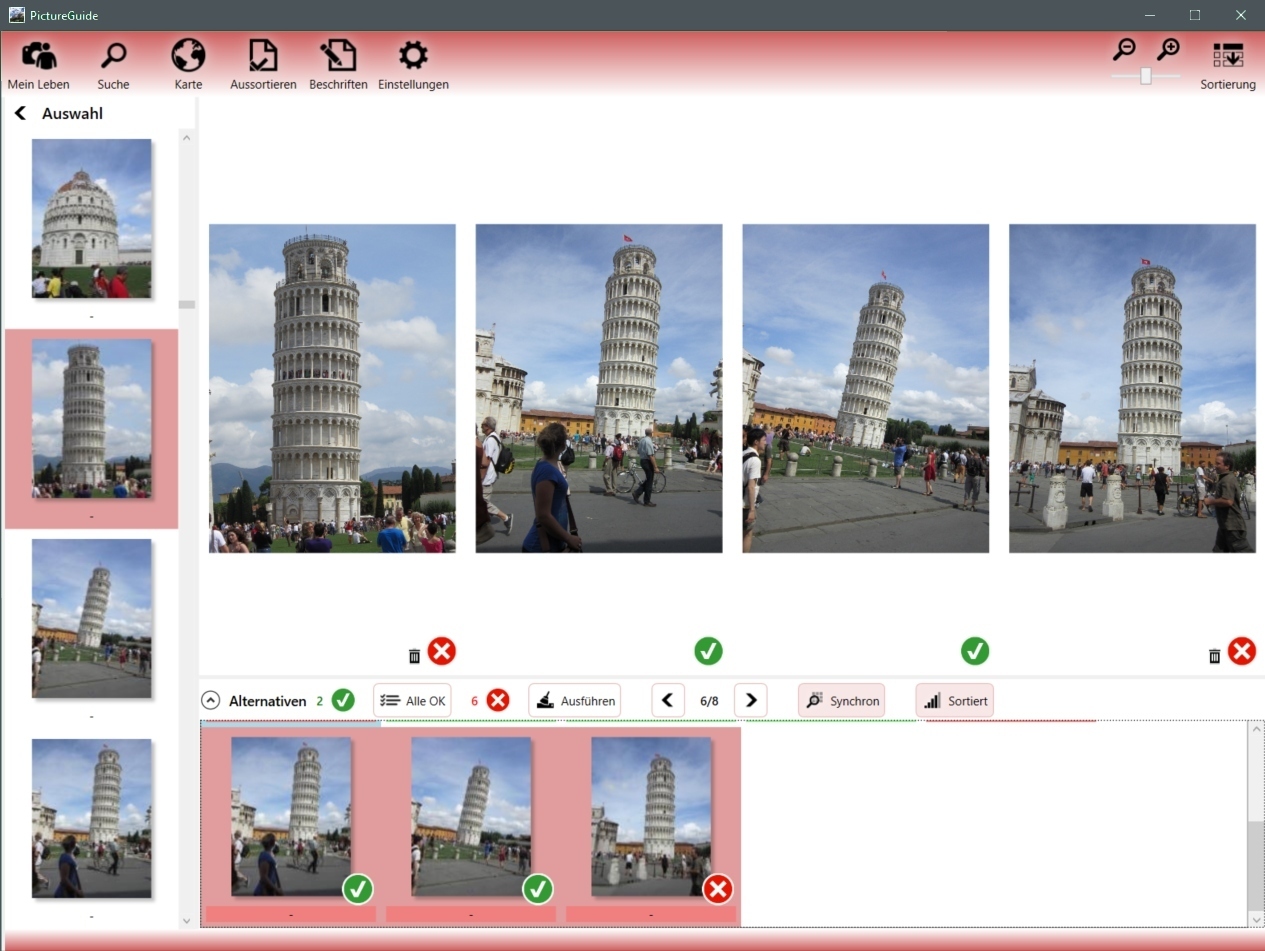
- In the left selection, the source image is selected for comparison.
- PictureGuide lists similar shots as candidates at the bottom
- The Sorted button switches between best picture and time interval
- For a better comparison, select some images in the lower area (Shift/Ctrl + mouse)
- Selected images appear in the overview and are zoomed and moved in parallel
- Parallel zooming/panning can be deactivated via the Synchronous button or holding the Alt key
- For good shots, use the mouse to switch the icon between X (delete) and tick (keep)
- To mark all candidates on Keep in advance, press the All OK button
- Once you have made your selection, click the Run button
- The images with erase marker are now deleted from the hard drive (or into the trash)