For photo management, the desired images must first be read in and cataloged. The files are not changed.
- Open PictureGuide > Settings > Library
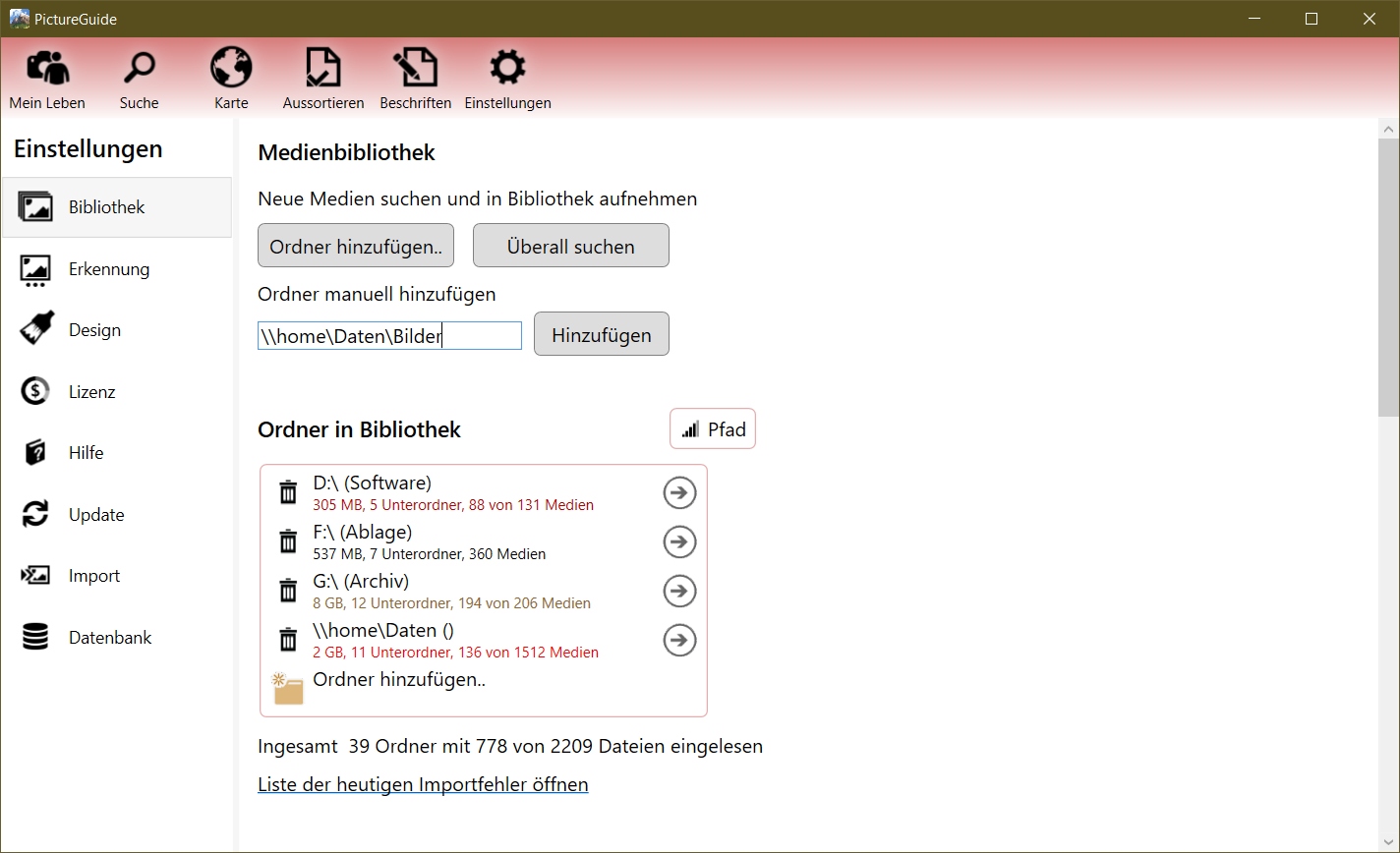
To automatically find all the picture folders on your system, press Search All.
If you want to add the folders yourself, click Add Folder.
In the following window, you can select the main folder of your images. Subfolders are automatically imported.
To import images from UNC paths, press Shift and click Add Folder...
Enter the UNC path directly in the new field and then click on "Add".
Manage/update folders in Library
PictureGuide generally detects changes to folders and automatically reads new files after some time. If you want to start the process yourself, change to the folder you want to update in the "Folder in Library" overview.
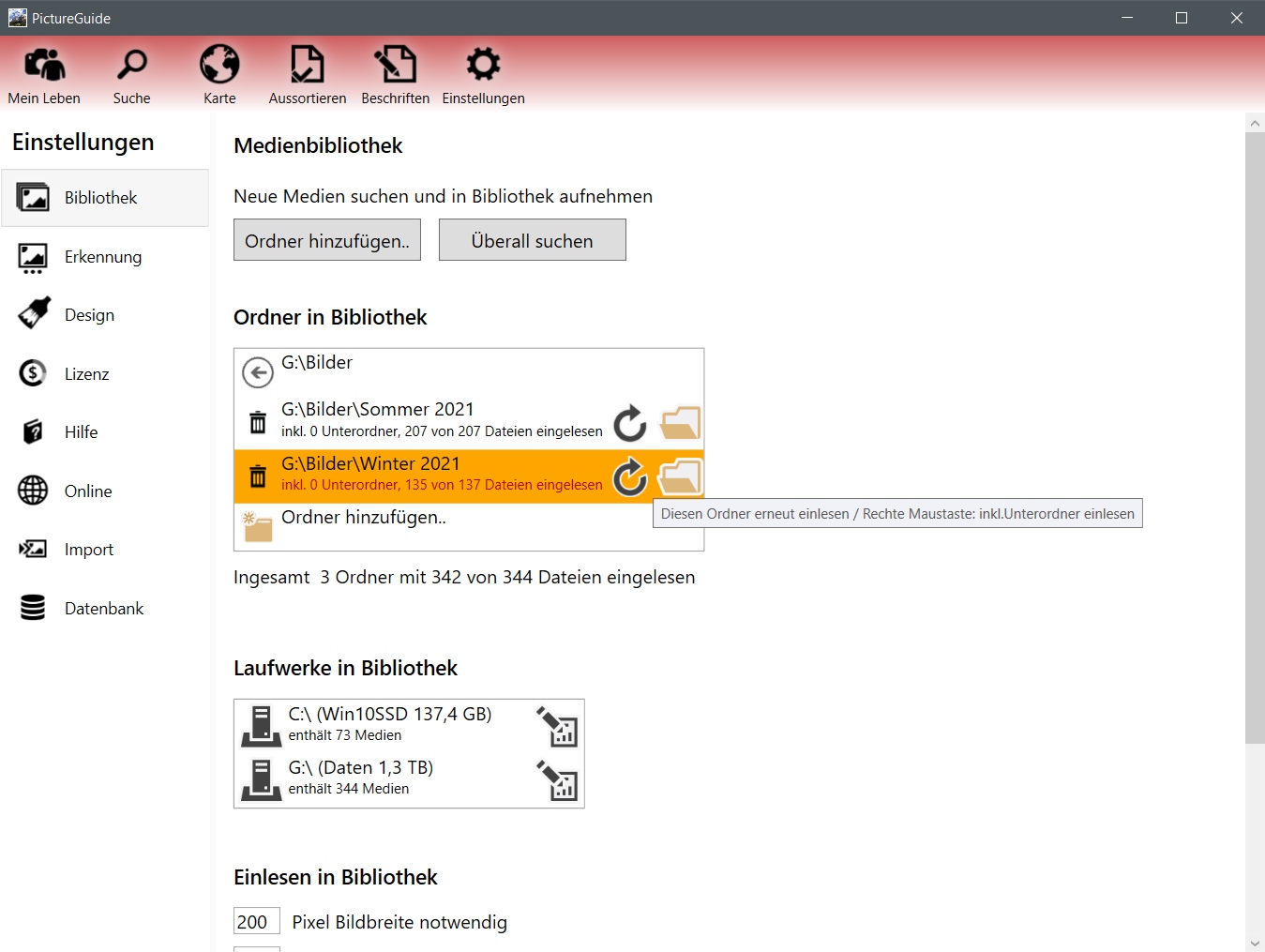
Then click on the update button. If you want to update a folder with subfolders, press the update button with the right mouse button.
To remove a folder from the library, click the trash can in front of the folder entry. By default, both this folder and all subfolders are removed. To remove only the displayed folder, right-click on the Trash.
The removed folders and files remain completely on the hard drive.
Drives in Library
You will receive a list of all drives on which images have been imported. In the case of removable storage devices (USB hard drive/stick), it is also shown whether they are currently connected.
If you want to protect certain drives from accidental deletion of images, you can change this using the read-only icon.
This setting only affects work in PictureGuide. For example, if you want to delete an image via PictureGuide that is on a drive with write protection, the operation will not be allowed.
Import into library
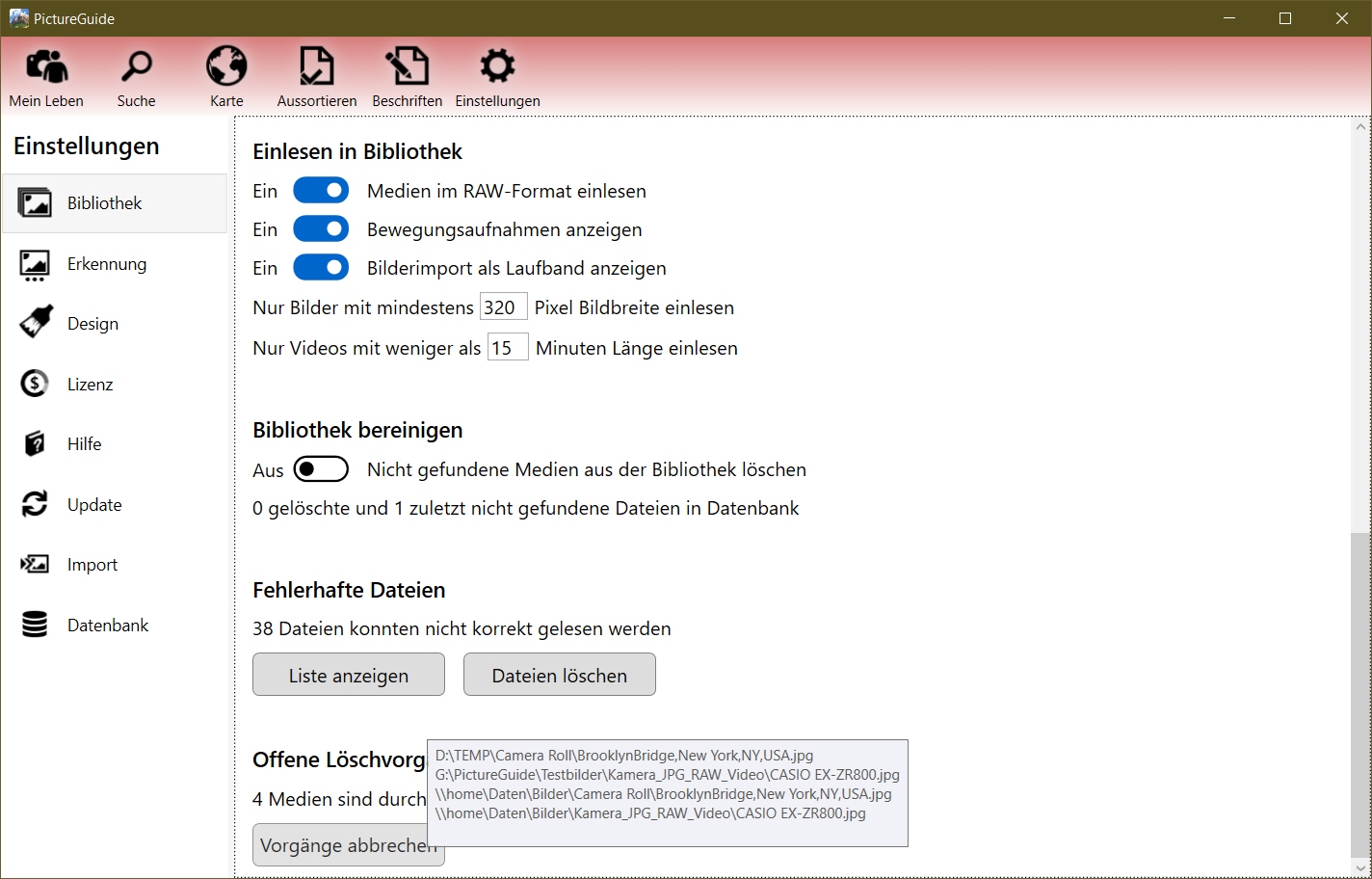
- Import RAW/HEIC format (off)
RAW/HEIC files require a special codec, reading must be activated separately. It checks whether a suitable codec is available and offers a download if necessary. - Display motion shots (on)
Samsung and Google smartphones can integrate small video sequences (motion photo) into the actual recording. PictureGuide can extract these and play them back if desired. With Apple products, the function does not have to be activated separately, as the video sequences are available separately. - Display image import as a treadmill (on)
If you do not want to follow the import process in the bottom bar of PictureGuide, you can deactivate this here. - Only images with at least ..
This setting is intended to prevent small images (icons, factions) from being read in automatically. This can happen when images are added using the Search Everywhere button. Set this value to 0 if you want all images to be imported. - Only videos with less than ..
This setting is intended to prevent e.g. movies and other videos that you probably did not record yourself from being imported into PictureGuide. For example, set this value to 500 if you want to read all videos.
Cleaning up the library
If images are no longer in their original location and not in a directory that has already been imported, they will be removed from the PictureGuide database when cleanup is turned on. However, if you want to keep all images in PictureGuide, even if they are no longer discoverable, then turn off the automatic cleanup of the library. You can then remove the images from the database yourself via the view or the folders. Files that are not found are given a red border.