The recording date can be changed in the right sidebar under the item Recording.
To change directly in the view, switch the sorting > label to Date taken.
Then click on the recording date you want to change or press the F2 key.
The shooting date is currently only changed in the PictureGuide database and not in the file.
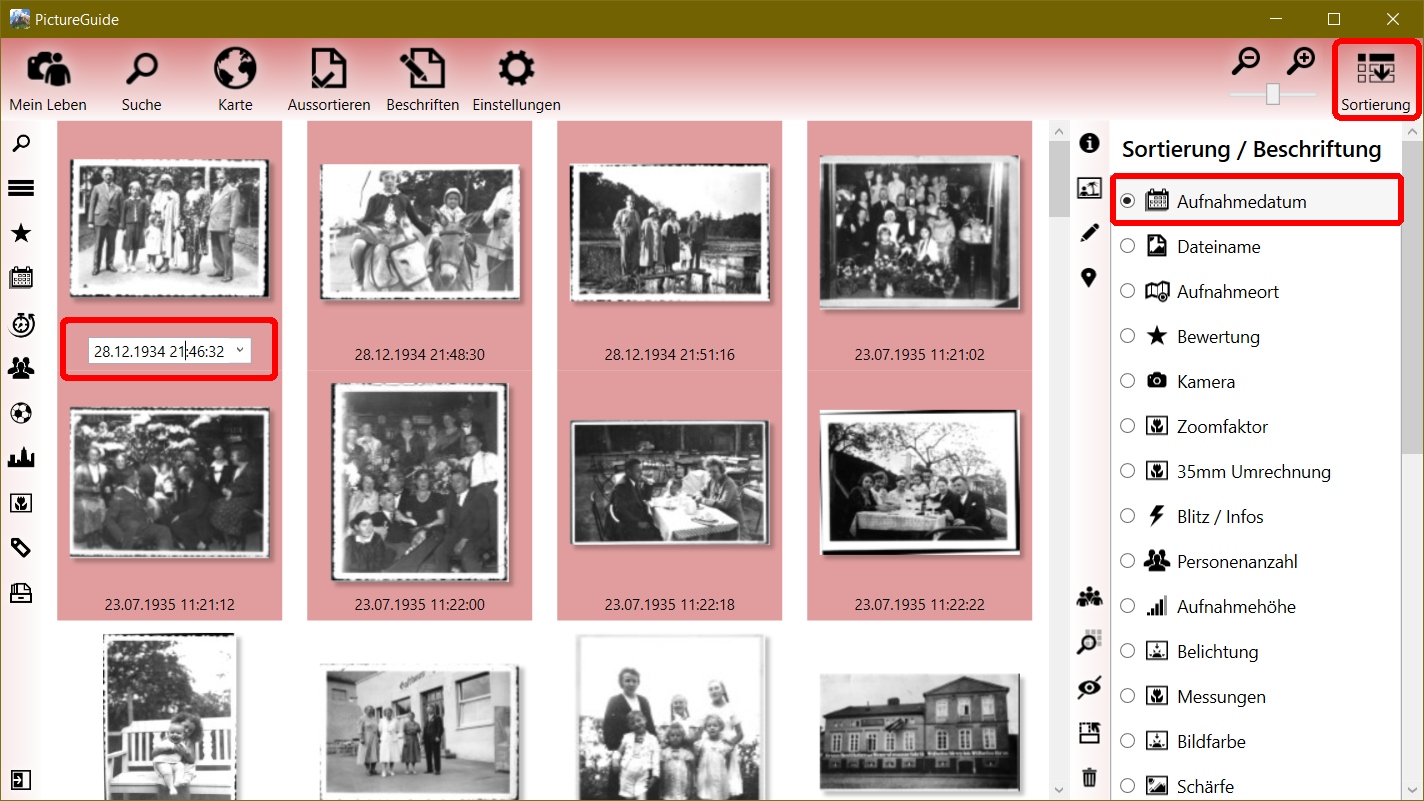
Change the recording date of several files at the same time
Select all desired files beforehand and start the date change for one file.
PictureGuide shows live how the other files would be changed, using the time difference from the original recording date.
Example: old: 12/22/1934 10:46:32 PM >> new: 12/28/1934 9:46:32 PM >> Difference: +6 days -1 hour
All selected files are changed by this difference.
Batch Processing with Placeholder
Placeholders can also be used, whereby the date taken is then extracted from the file path (path and file name). Suitable placeholders are already stored in the drop-down list and can also be adjusted.
Example:
The files are located in the folder: F:\Pictures\Family\193508_Treffen\.. (blue)
To set the recording date of the marked files to August 1935, enter the placeholders %YYYYMM% (red) according to the order of the numbers in the file path.
The live preview shows the new recording date for each file. The change is executed with ENTER or Apply or canceled with the ESC key.
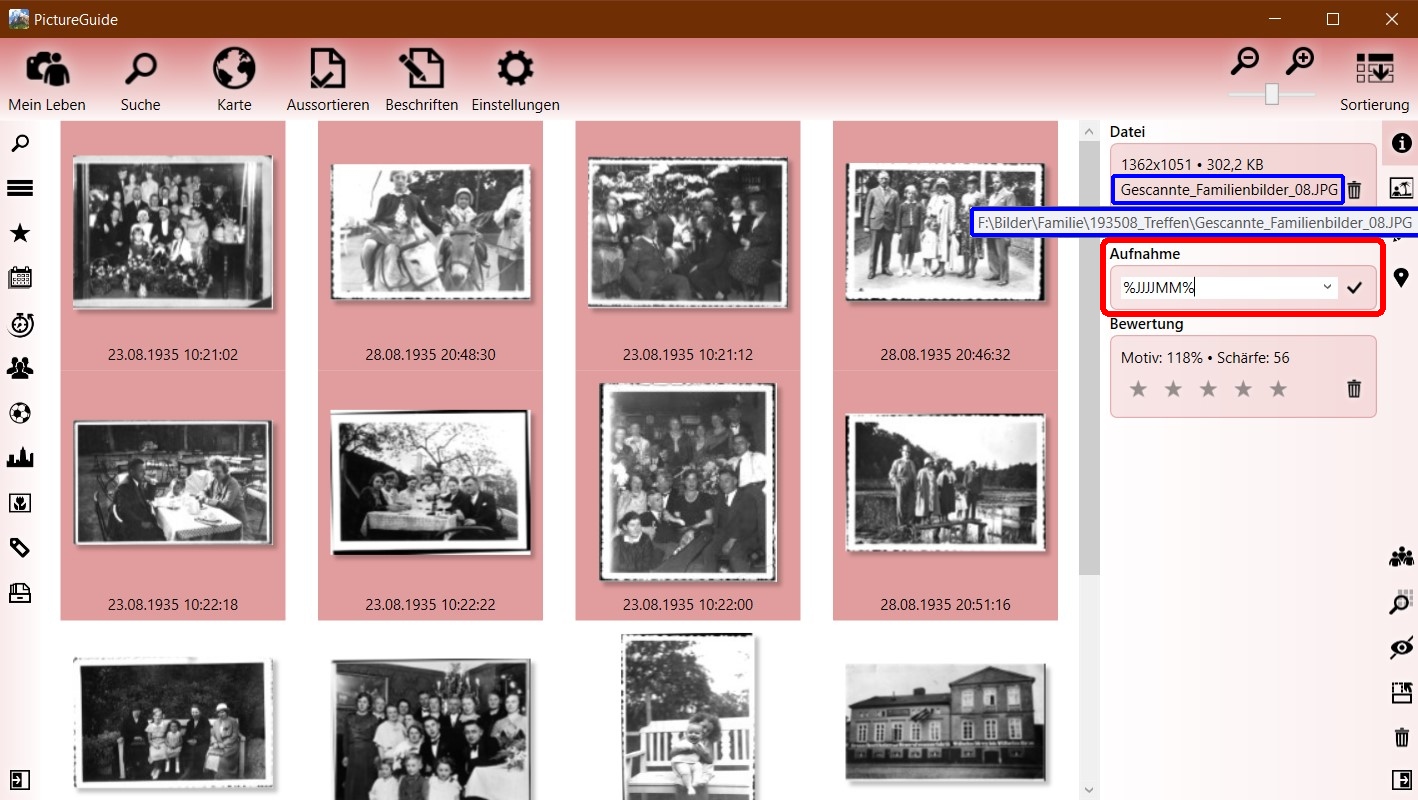
Example of wildcard usage
Only the numbers from the file path are used for the placeholders. Dates that are not captured by the placeholders are preserved. Example Recording date so far: 02/02/2022 02:02:22
- File path > Extracted numbers > %placeholder% > new date
- D:\Images\2018-11-06 13-10 Nr 01.JPG
> 20181106131001
> %YYYYMMDDhhmm%
> 11/6/2018 1:10:22 PM - D:\Images\2006_12_24\19_18_46.jpg
> 20061224191846
> %YYYYMMDDhhmmss%
> 12/24/2006 7:18:46 PM - D:\Pictures\Iceland 2006\Datum_0402.jpg
> 20060402
> %YYYYMMDD%
> 4/2/2006 2:02:22 AM - D:\Pictures\1984 08 Urlaub_10.jpg
> 19840810
> %YYYYMM%
> 8/2/1984 2:02:22 AM - D:\Pictures\60 Anniversary\2001-01-22.jpg
> 6020010122
> %XXYYYYMMDD%
> 1/22/2001 2:02:02 AM
If the file path contains numbers at the beginning that should be skipped, mark them with X. In this example, the 60.