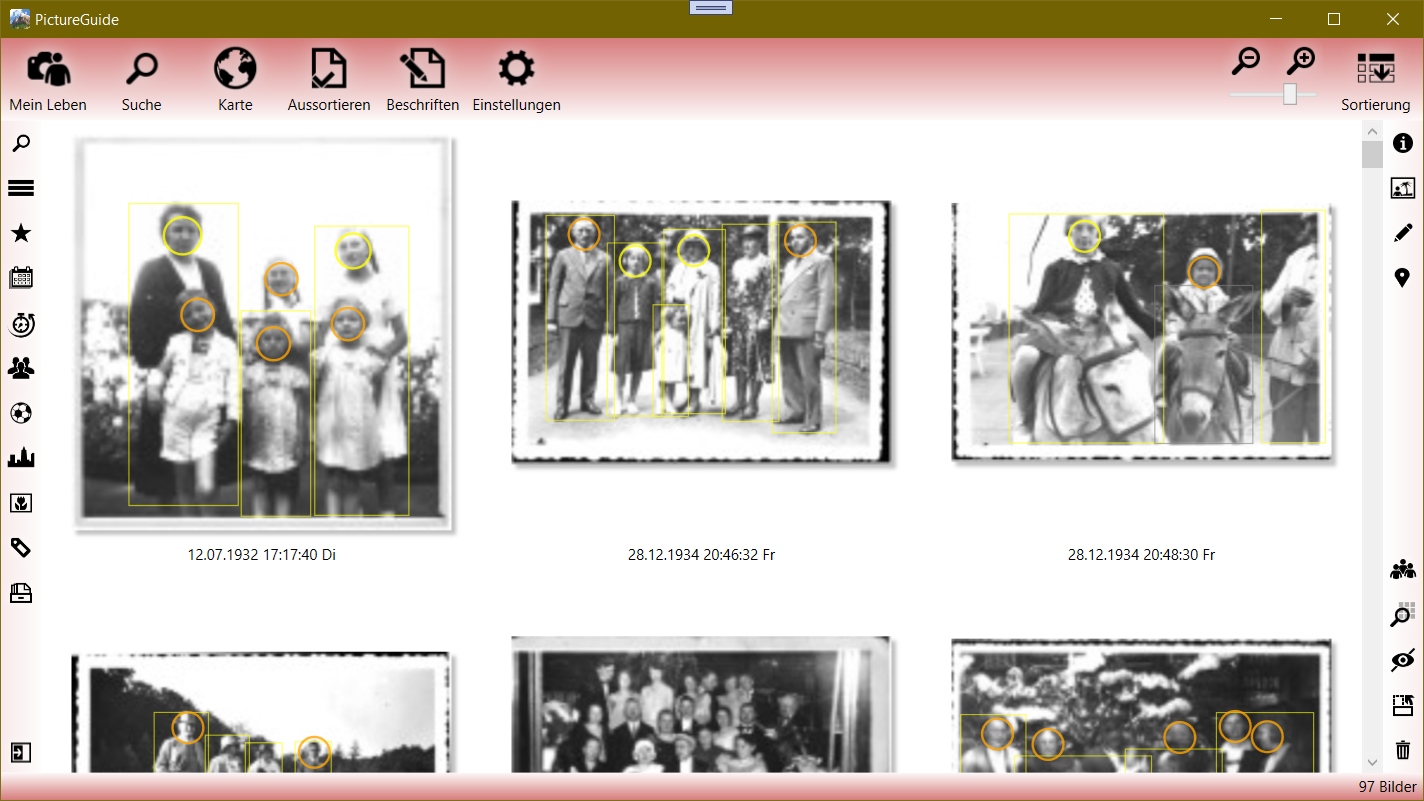
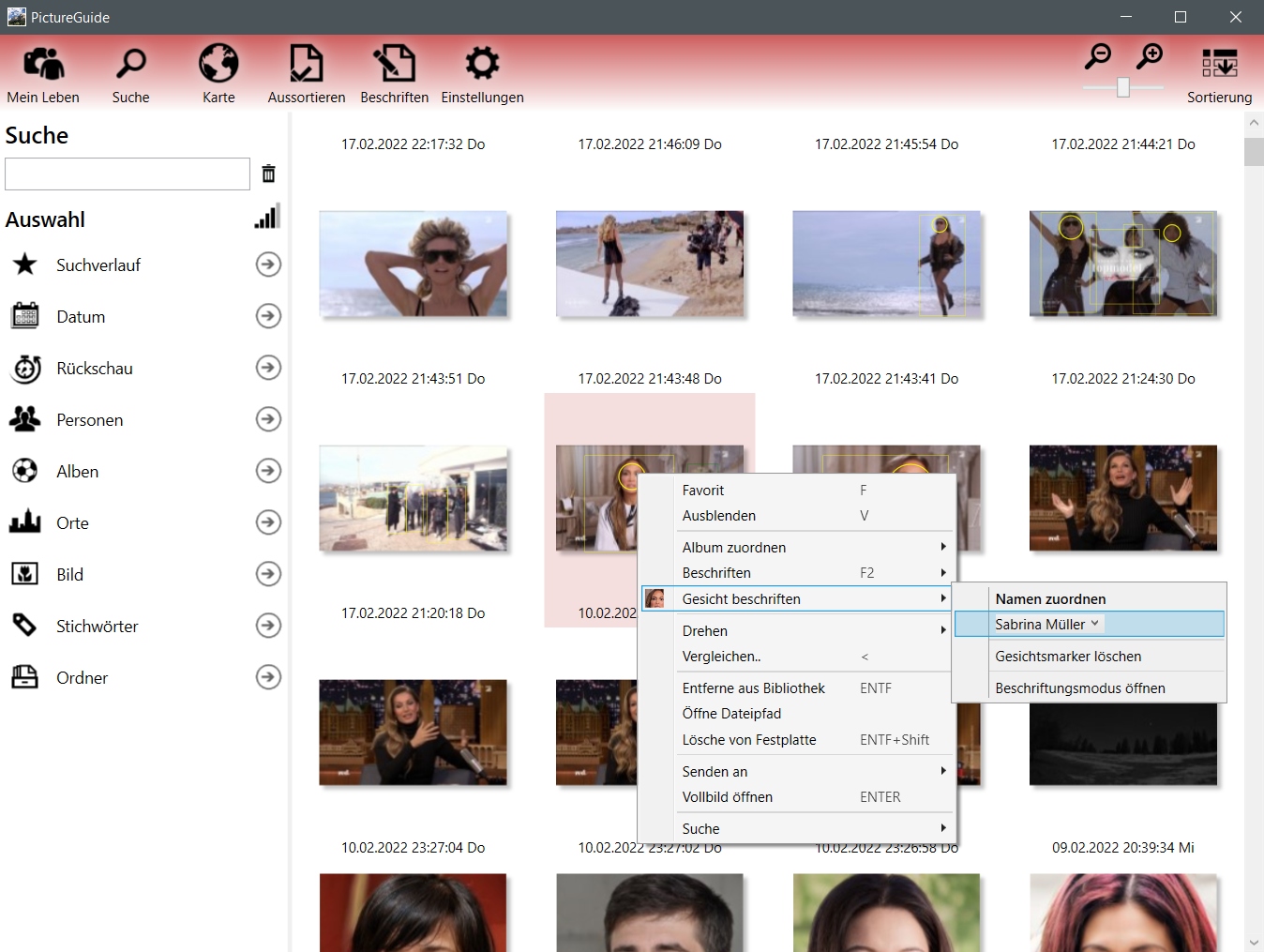
Faces can be assigned to a person directly in the context menu of the image. Only existing persons can be used for labeling.
To do this, go directly to a face and right-click on it. From the context menu, select Label Face..
Choose the appropriate name from the suggestions or drop-down menu.
In the drop-down menu, the names can be quickly accessed by entering a letter.
Then click next to the selection or press ENTER to apply the entry.
If you don't know the person, you can also delete the face marker. This means that the face is no longer taken into account in the face recognition and is no longer marked on the image.
Via the entry Label faces, it is possible to clearly display and label all faces on the image. Useful for group shots of people who are rarely photographed, as they may not be assigned via facial recognition.
The ability to label faces via the context menu is only intended for spontaneous work. If you want to assign faces in general, we recommend the menu item Label > people.
View Name Mapping Status
If you want to see the status of the caption of people directly, it is recommended to activate the tag.
About Settings > Recognition > Show details and markers
yellow face marker: person is labeled
orange face marker: person is not labeled yet