While an image is tagged
E : Edit image with the first program under "Send to" > "Program"
F : Mark image as favorite. As a result, rating 4 stars and frame yellow.
P : Copy the path of the image to the clipboard. +Shift: With file names.
R : Rotate image to the right. +Shift: Rotate to the left
V : Hide image. Hidden images can be displayed under "Sorting"
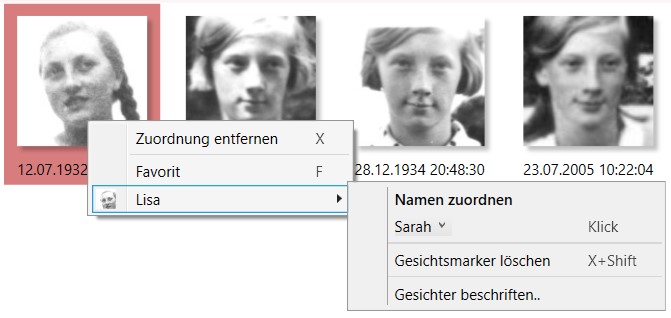
X : Stop making a proposal or remove a map (face)
X+Shift : Delete face and no longer use it in the program. Image will be preserved.
< : Open Image Comparison. Comparison mode with images within 1 hour radius.
Enter : Open image in full screen. If available on the 2nd screen.
Entf : Remove image from library. The image remains on the hard drive.
Entf+Shift : Delete image completely. The hard drive is moved to the Windows Recycle Bin.
F2 : Change the label. Affects the current caption (date, file name, etc.)
Mark / View
F5 : Refresh view.
F11: Toggle full screen. Also possible by double-clicking on program background.
Space: Select image. +Shift: Select the sequence of images. +Ctrl: Select single frames.
left Mousebutton: Select image. +Shift: Select the sequence of images. +Ctrl: Select single frames.
right Mousebutton: Open context menu for further functions. In the image or face.
A+Ctrl : Select all images/faces.
D+Ctrl: Show duplicates on/off. Also adjustable via "sorting".
S+Ctrl: Flip sorting. Also adjustable via "sorting".
General Features
Esc : Cancel current operation. e.g. full screen, marking, reading images
F1 : Open Online Context Help. A query window will appear beforehand.
L+Ctrl: Enable debug logging for support case
Extra functions
Library > Add Folder... + Shift : Manual path entry opens
Library > Update Folder.. > right mouse button : Update folders and subfolders
For the sake of clarity, the executing key is mentioned first in keyboard shortcuts.
The operation is to be carried out as follows: Hold down X+Shift >> Shift and press X while doing so
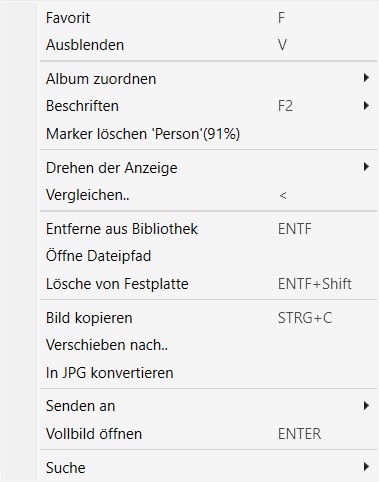
Context Menus - Viewing Keyboard Shortcuts
Common keyboard shortcuts can also be found in the respective context menus. This is displayed when you right-click on an image/face.